Bob Lin Photography services
Real Estate Photography services




Troubleshooting DNS issue using Mac Network Utility
Troubleshooting email issue using Finger in Mac Network Utility
Troubleshooting Mac Network Problem by checking network information in Network Utility
Troubleshooting Mac network issues by checking Netstat in Network Utility
Troubleshooting Mac network using ping in Network Utility
Troubleshooting Name Server using Mac Network Utility
Troubleshooting Mac security issue using Network Utility PortScan:
Troubleshooting Mac Network Problem by checking network information in Network Utility
1. Open Network Utility by navigating to Applications>Utilities>Network Utility.

2. In The Network Utility, click Info tab.
3. Select a network interface. Then check IP address, link status, send and receive errors.

Troubleshooting Mac network issues by checking Netstat in Network Utility
1. Open Network Utility by navigating to Applications>Utilities>Network Utility.
2. Click Netstat tab.
3. To check the routing table, select Display routing table information and click Netstat to start.
4Pay attention to default gateway. If you have miltihomed computer with two gateway, you may have a network connection problem.
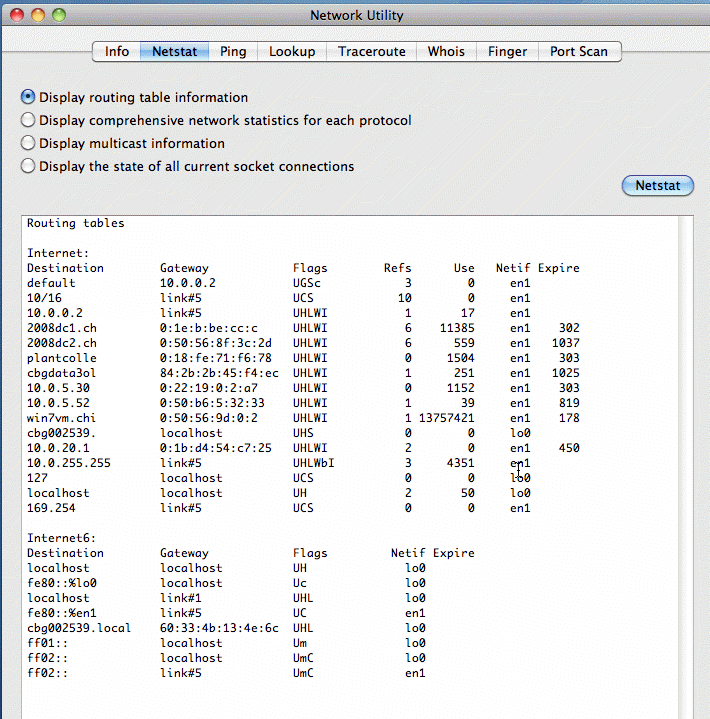
4. To check the socket connections, select Display the state of all current socket connections.

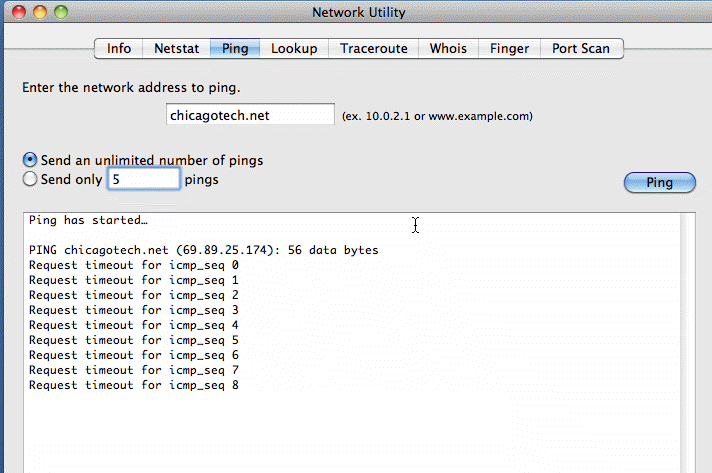
Troubleshooting Mac network using ping in Network Utility
Ping is useful network troubleshooting tool. You can use the ping tool in Network Utility. Or you can run terminal app.